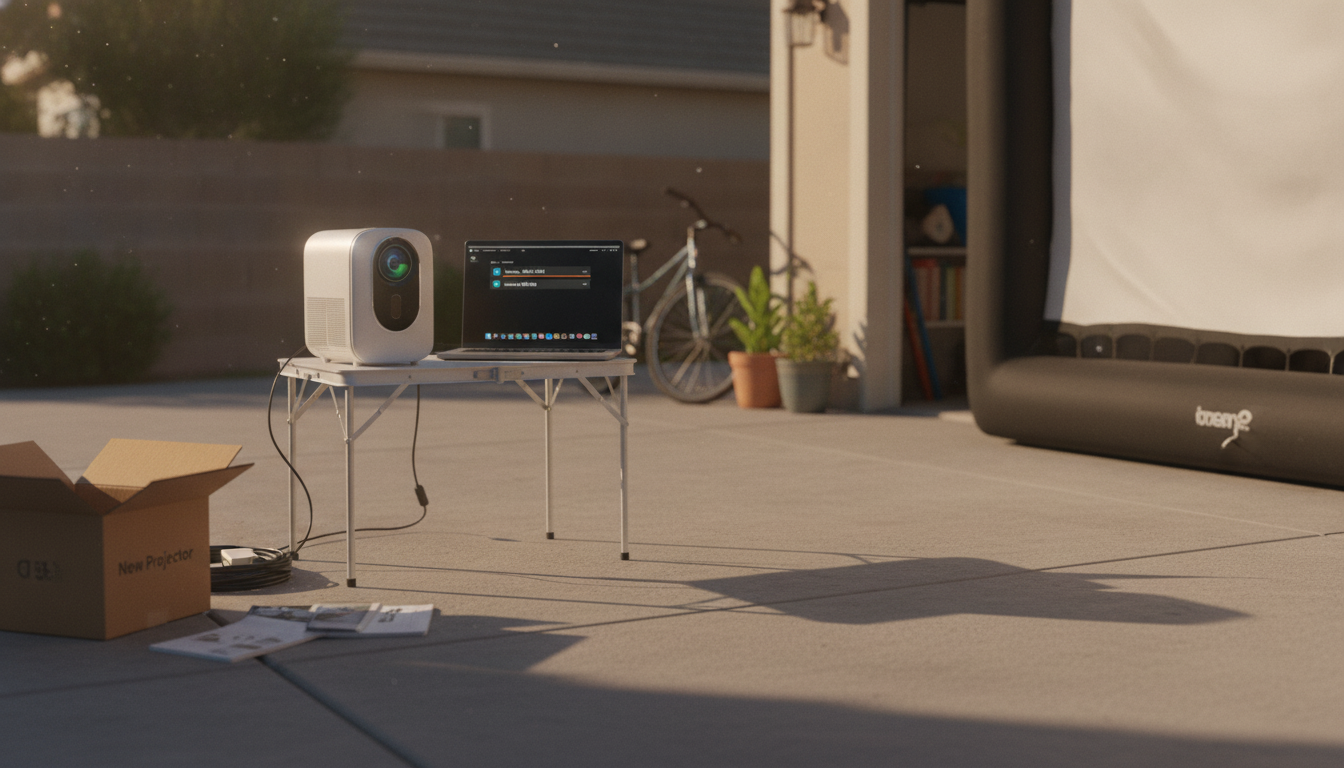
Most smart projectors can join either 2.4GHz or 5GHz WiFi, but the best choice depends on your room setup and what you’re streaming. In general, 2.4GHz reaches farther and handles walls better, while 5GHz is usually faster and less crowded at short range. If your projector struggles to stay connected, picking the right band (and making sure your router is configured to let you choose it) is often the fix.
Open the projector’s Settings, then Network/Wi‑Fi. Look for supported bands (some models are 2.4GHz-only). If the projector doesn’t see any 5GHz networks, it may not support 5GHz, or your router’s 5GHz channel may be set to a range the projector can’t use.
Choose 2.4GHz if the projector is far from the router, separated by multiple walls, or used outdoors/garage setups. Choose 5GHz if the projector is in the same room (or nearby) and you want smoother 4K streaming and lower interference from neighboring networks.
If your router uses one combined network name (SSID) for both bands, the projector may “choose” the wrong one. The simplest solution is to split the SSIDs in your router settings (for example, “HomeWiFi-2G” and “HomeWiFi-5G”), then connect the projector to the band you want.
On the projector, select the chosen SSID, enter the password, and confirm it shows “Connected.” If apps buffer or the connection drops, try switching bands, moving the router closer, or rebooting the projector and router.
Forget the network and reconnect, double-check the password, and ensure the router is using WPA2/WPA3 (not older WEP). If 5GHz won’t show up, try changing the router’s 5GHz channel to a common option (often 36–48) and avoid DFS channels if your projector doesn’t support them.
For a deeper walkthrough and more troubleshooting tips, see the main guide: How do I connect a smart projector to dual-band WiFi (2.4GHz vs 5GHz)?
Weak signal, band congestion, or limited router bandwidth can cause buffering even when the projector says it’s connected. Try switching to 5GHz at close range, lowering streaming resolution, or moving the router to reduce walls and interference.






Leave a comment