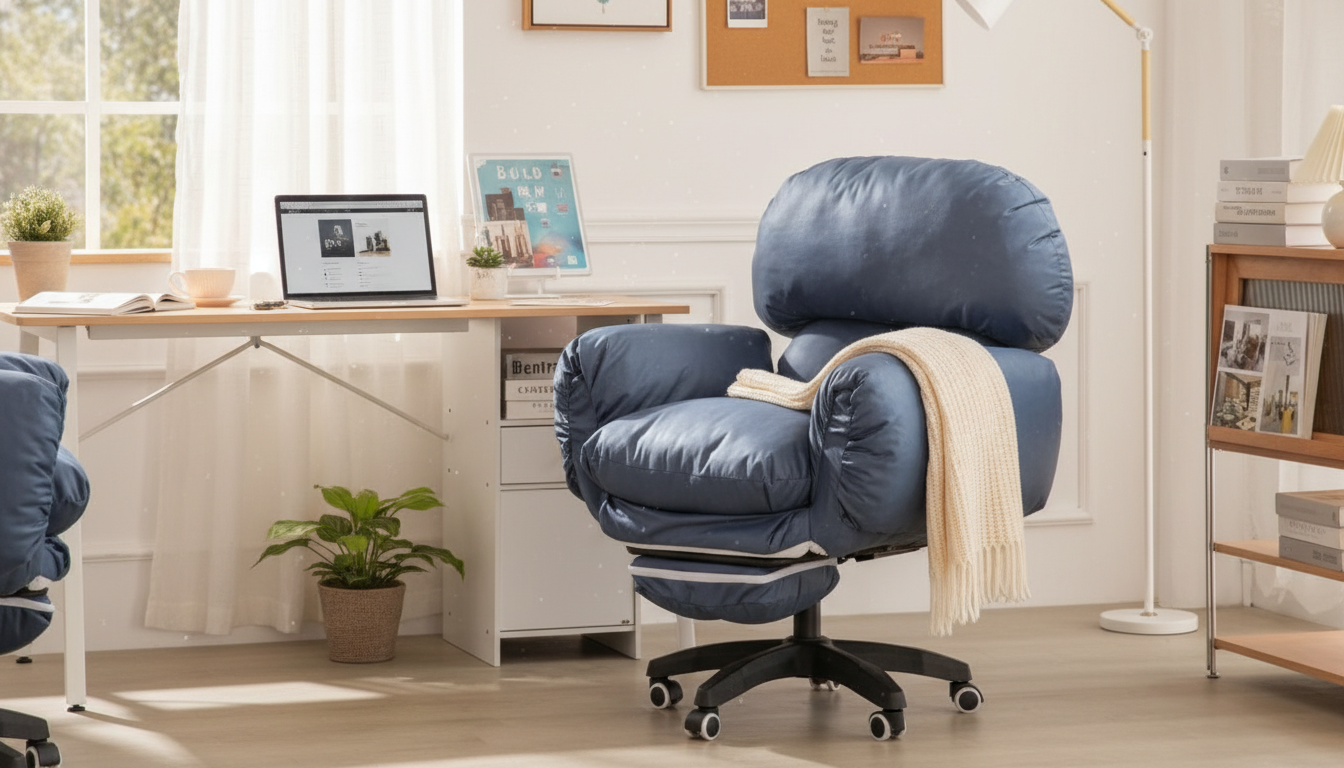
Long hours at a desk can load the neck, shoulders, and lower back—especially when a chair doesn’t match the body’s natural curves. This swivel office chair pairs a full body back cushion with adjustable armrests to support neutral posture, reduce pressure points, and keep movement effortless throughout the day. Below is a practical breakdown of comfort features, setup tips, and what to look for when dialing in a chair for focused work, study, or creative sessions.
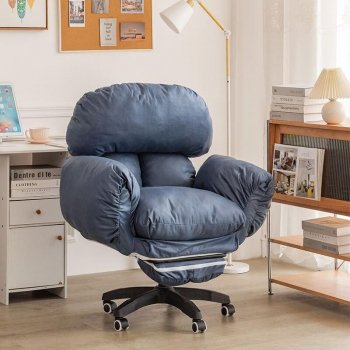
The core idea behind a comfortable desk chair is steady, repeatable support: the back stays in contact, the shoulders stay relaxed, and you can turn or reach without torquing your spine. The Ergonomic Swivel Office Chair with Full Body Back Cushion & Adjustable Armrests focuses on those fundamentals.
| Feature | Why it matters | How to set it up |
|---|---|---|
| Full body back cushion | Spreads support across more of the back for steadier posture | Sit back fully so the cushion contacts from mid-back to lumbar |
| Adjustable armrests | Helps relax shoulders and align forearms | Raise/lower until forearms are supported without shrugging |
| Swivel function | Reduces torso twisting when reaching | Keep frequently used items within a comfortable arc; swivel instead of twisting |
| Padded seat feel | Improves comfort over long sessions | Use a footrest if feet don’t rest flat after height adjustment |
A full back cushion can be a difference-maker for long sessions because it encourages consistent contact—less “floating” away from support as the day goes on. When the back stays supported, the rest of the workstation (keyboard, mouse, monitor) becomes easier to position around a neutral posture.
For general workstation guidance, resources like the Mayo Clinic’s office ergonomics guide and the OSHA Computer Workstations eTool outline practical alignment targets you can apply at home or in an office.
Armrests are often treated like a “nice-to-have,” but dialing them in can noticeably reduce neck and shoulder load—especially during long typing stretches or mouse-heavy work.
If eye fatigue is part of the workday equation, pairing a solid chair setup with screen-friendly habits can help. Some shoppers also add accessories like Anti-Blue Light Gaming Glasses for long monitor sessions.
Comfort comes from the system—chair, desk, and screen—working as one. A quick reset is often all it takes to stop “fighting” your setup and start feeling supported.
For a deeper look at preventing work-related strain, the NIOSH ergonomics overview offers helpful context on how repetitive tasks and static posture can add up over time.
Different tasks stress the body in different ways. This chair’s combination of full-back contact, adjustable arm support, and swivel movement tends to match work that includes frequent transitions—typing, reading, reaching, and turning.
Set armrests so elbows stay close to the torso at about a right angle, shoulders remain relaxed (not shrugged), and wrists stay straight while reaching the keyboard and mouse.
It can help by maintaining consistent contact and distributing pressure, but results depend on the overall setup—seat height, foot support, and monitor/keyboard placement still matter.
Swivel can reduce twisting and awkward reaching, making it easier to turn toward items or screens while keeping the spine aligned.





Leave a comment