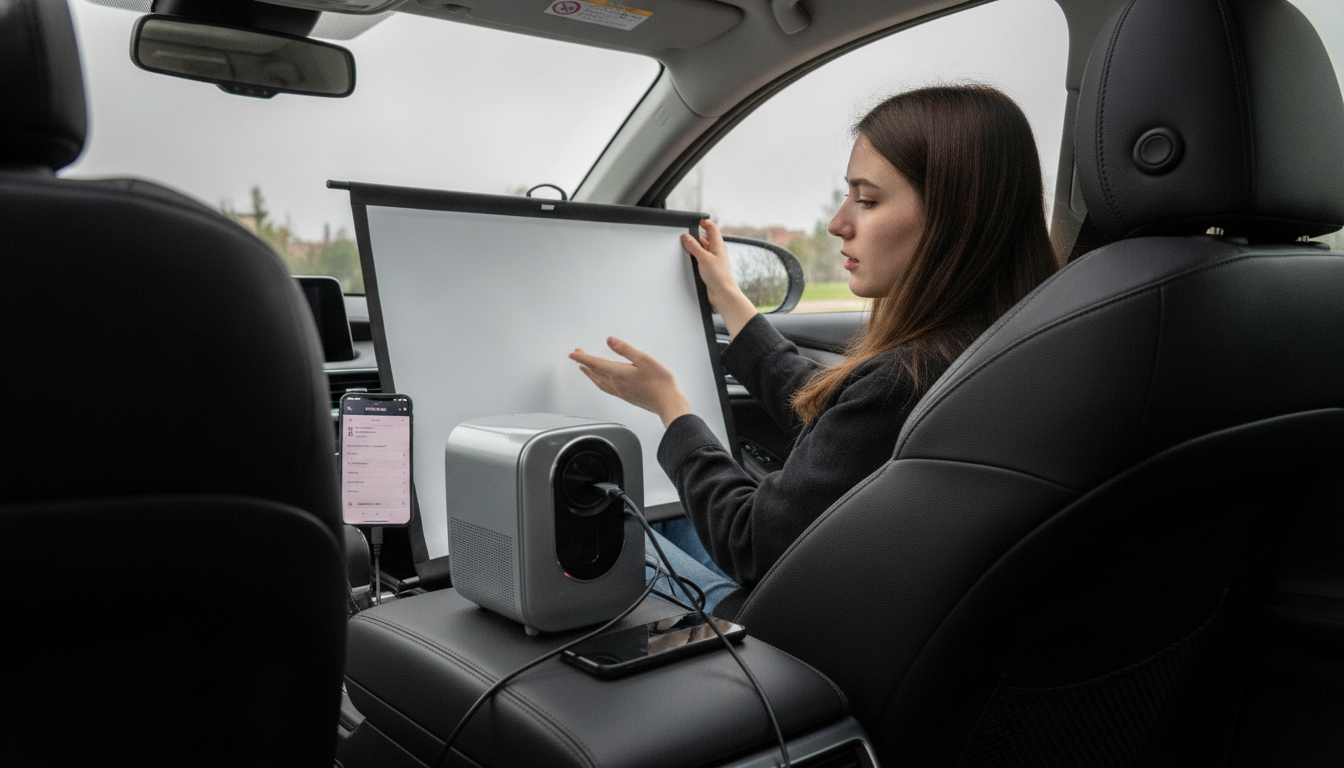
Connecting a phone to a 720p home theater projector usually comes down to two paths: a wired connection (most reliable) or wireless screen sharing (most convenient). The best option depends on your phone type, the ports on your projector, and whether you’re playing streaming apps that may restrict certain casting methods.
Look for an HDMI port (most common), USB-C, or a legacy input like VGA/AV. For phones, HDMI is typically the simplest target, using the right adapter. If your projector has multiple HDMI ports, pick one and note its label (HDMI 1, HDMI 2) so you can select it later from the projector’s input menu.
Use an Apple Lightning Digital AV Adapter (for Lightning iPhones) or a USB-C to HDMI adapter (for newer USB-C iPhones). Plug the adapter into the phone, connect an HDMI cable from the adapter to the projector, then switch the projector to that HDMI input. Most setups mirror the phone automatically once the input is selected.
Many Android phones support video out through USB-C (often called DisplayPort Alt Mode). Use a USB-C to HDMI adapter or USB-C hub with HDMI, then run an HDMI cable to the projector and select the correct input. If your phone doesn’t support video over USB-C, consider wireless casting or a compatible streaming device connected to the projector’s HDMI port.
If your projector has built-in wireless mirroring, enable it on the projector, then use AirPlay (iPhone) or Cast/Smart View (Android) to connect. For projectors without strong built-in casting, a dedicated streamer (like an AirPlay- or Cast-capable device) connected to HDMI often provides a smoother experience.
A 720p projector will downscale higher-resolution phone output automatically, but you can improve stability by lowering streaming quality in the app if playback stutters. For audio, use the projector speaker, Bluetooth speaker (if supported), or route sound through a receiver/soundbar connected to the projector setup.
For a more detailed walkthrough and compatibility tips, visit the main guide here.
Confirm the projector is set to the correct HDMI input, reseat the adapter and cable, and make sure your phone supports video output over its port. If using wireless, verify both devices are on the same Wi‑Fi network and that screen mirroring is enabled on the projector.



Leave a comment